
How to Send Your Free eBook to Your Kindle
Would you like to read your free eBook on your Kindle?
Download your eBook and follow these three simple steps. You don’t need a Kindle Unlimited subscription.
STEP 1. DOWNLOAD YOUR FREE EBOOK
Click the button below to download your free eBook in EPUB format.
You’ll normally find the file in the Downloads folder on your phone or computer.
STEP 2. SEND YOUR EBOOK TO YOUR KINDLE
Click the OPEN SEND TO KINDLE button below.
Sign in with the Amazon account linked to your Kindle.
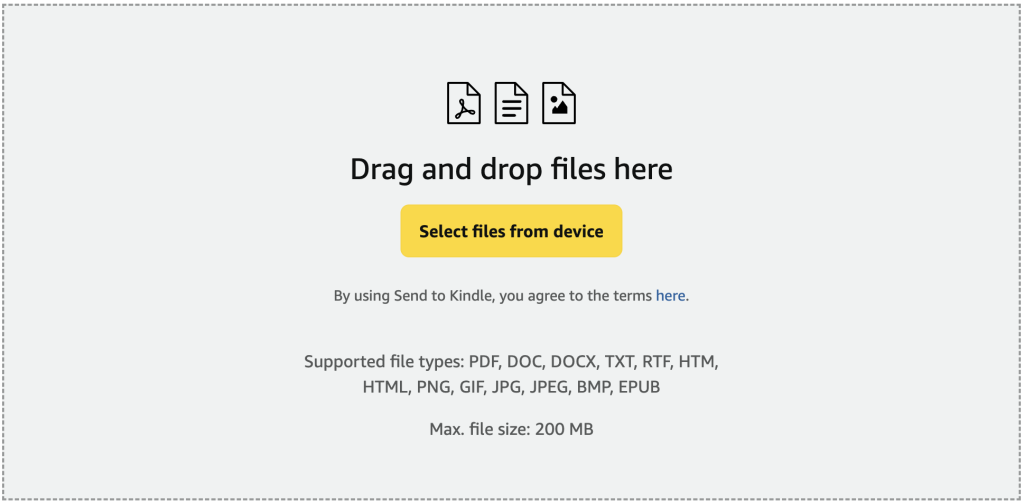
Click Select files from device and find the eBook you just downloaded in your Downloads folder.
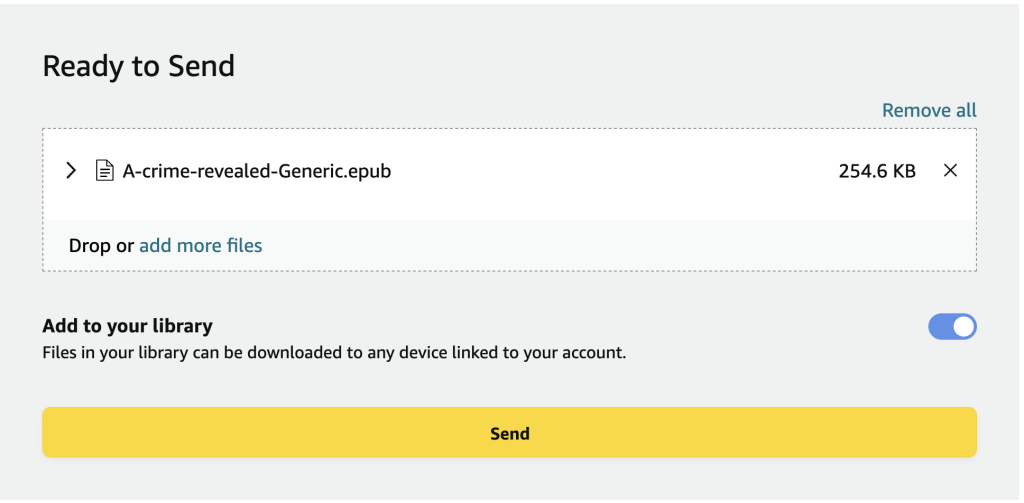
Select the EPUB file and turn on Add to your library so you can access it on your Kindle devices.
Click Send and wait for Amazon to finish processing the file.
Done! Your eBook will now be available in your Kindle library.
STEP 3. OPEN YOUR EBOOK ON YOUR KINDLE
Once Amazon confirms that your file has been sent successfully:
Turn on your Kindle and make sure it’s connected to the internet.
Open your Library and look for the eBook you just sent.
If it doesn’t appear, select Sync and wait a few moments.
When the eBook appears in your library, tap it to start reading.
Happy reading!
If you use the Kindle app on your phone or tablet, you’ll also be able to find the eBook in your library, provided you’re signed in with the same Amazon account and have added the file to your library.
Having trouble? Send your eBook by email
You can also send your free eBook directly to your Kindle by email.
1. Find your Kindle email address.
On your Kindle, go to Settings → Your Account and look for Send to Kindle Email.
This address usually ends in @kindle.com.
2. Approve your email address.
On Amazon, go to Manage Your Content and Devices → Preferences → Personal Document Settings.
Check the approved email address list to make sure the address you’re sending from is authorised. If it’s not listed, add it.
3. Send your eBook.
Open your usual email account and compose a new message addressed to your Kindle email address.
Attach the EPUB file you downloaded earlier and send the email.
4. Check whether Amazon requests confirmation.
For security reasons, Amazon may send you a verification email. If you receive one, follow the instructions to confirm the delivery.
5. Open your eBook.
Connect your Kindle to the internet, sync your library and look for the eBook you just sent.
Happy reading!
CAN'T FIND YOUR EBOOK ON YOUR KINDLE?
If your eBook isn’t showing up on your Kindle, don’t worry. Try these solutions:
Check your internet connection. Your Kindle needs to be connected to the internet to receive the file.
Sync your Kindle. Open your library and select the Sync option.
Check your Amazon account. Make sure you’re using the same Amazon account you used to send the file.
Check your library filters. If you’ve selected “Books”, switch to “All” or “Docs”, if available.
Try sending the file again. If Amazon hasn’t confirmed that the file was sent successfully, repeat the process using Send to Kindle.
Still having trouble?
Reply to the email you received with your free eBook and let me know what’s happening. I’ll do my best to help you personally.